FRP Unlock by OS — How to Bypass Google Lock and Manufacturer Accounts on Any Android Version
9 min read
Most people think FRP is just about the Google account. But depending on your phone's operating system and manufacturer, you could be dealing with two separate locks after a factory reset — one from Google and another from the brand itself. This guide covers how Factory Reset Protection behaves across different Android versions and manufacturer skins, what to expect from each, and how to remove both layers when you're locked out. If recovery options don't cut it, FRPRemoval can handle both Google and OS-specific locks from your browser.
Is This the Right Guide for Your Situation?
If you're stuck at a verification screen and you're not sure whether it's the Google lock, a manufacturer lock, or both, you're in the right place. These are the most common scenarios where the OS-level FRP becomes a problem.
- You reset your phone and now it's asking for both a Google account and a manufacturer account (like a Samsung or Xiaomi account).
- You managed to get past the Google verification, but a second lock screen appeared asking for a brand-specific login.
- You're trying to set up a used phone and the previous owner had a Samsung, Huawei, or Xiaomi account linked to the device.
- You updated your phone's firmware or installed a custom ROM, and a verification screen you've never seen before appeared during setup.
- Your phone runs a manufacturer interface like One UI, EMUI, MIUI, or Funtouch OS, and you don't know how the lock differs from standard Android.
Rest assured — dealing with two locks at once is more common than you'd expect. It doesn't mean your device is permanently bricked. It just means you need a tool that understands both layers, not just one.
What Should You Prepare Before Attempting an OS-Level FRP Bypass?
Since you might be dealing with more than just the Google account, it helps to gather a bit more information upfront. This will save you from hitting a wall midway through the process.
Have these ready
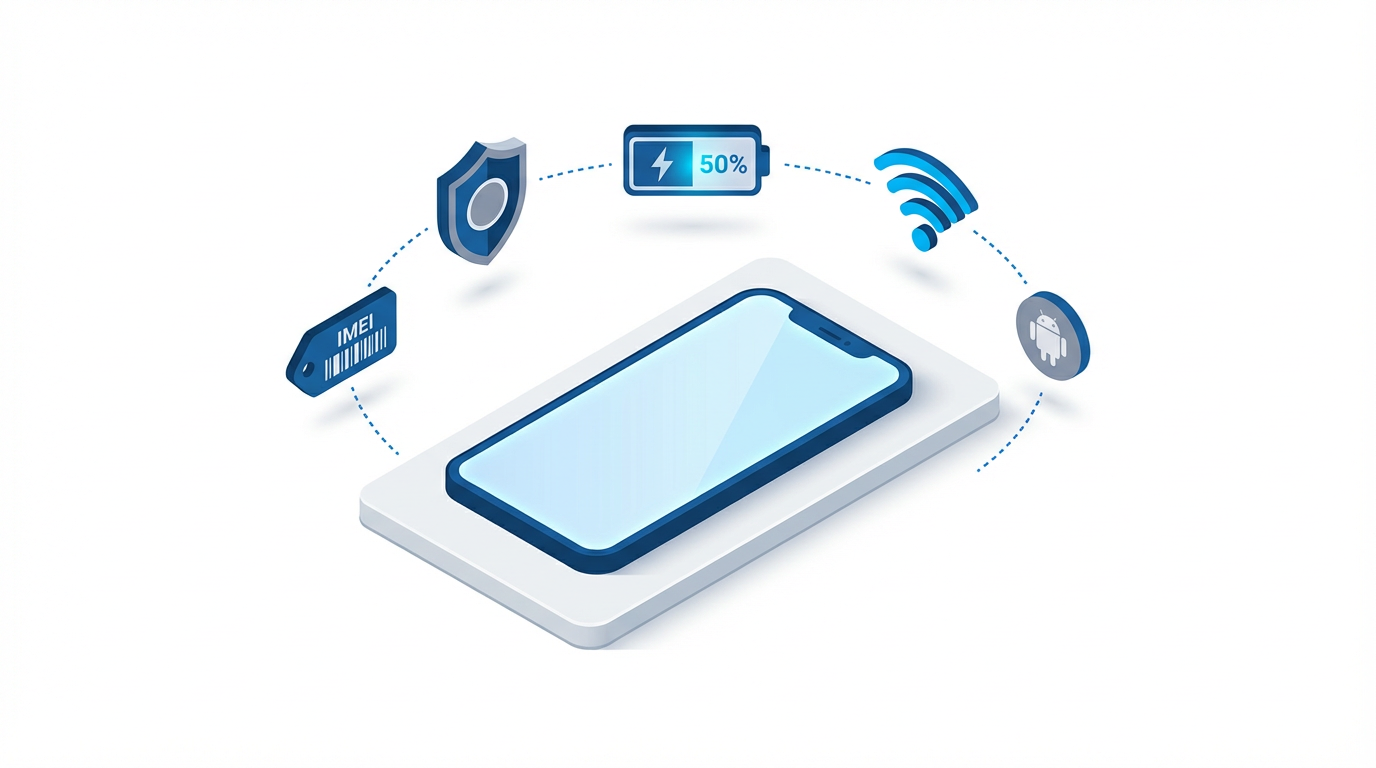
- Your device's IMEI number — dial *#06# from the emergency dialer or find it on the SIM tray / original box.
- The exact phone brand and model — this matters more than usual because the manufacturer lock varies from brand to brand.
- The Android version your phone runs — check it in recovery mode if you can't access Settings. Older versions have different bypass options than newer ones.
- Whether you have any brand account credentials — a Samsung account, Mi account, Huawei ID, etc. If you do, try entering them first.
- A stable internet connection and at least 50% battery — the dual verification process can take a bit longer than a single-lock unlock.
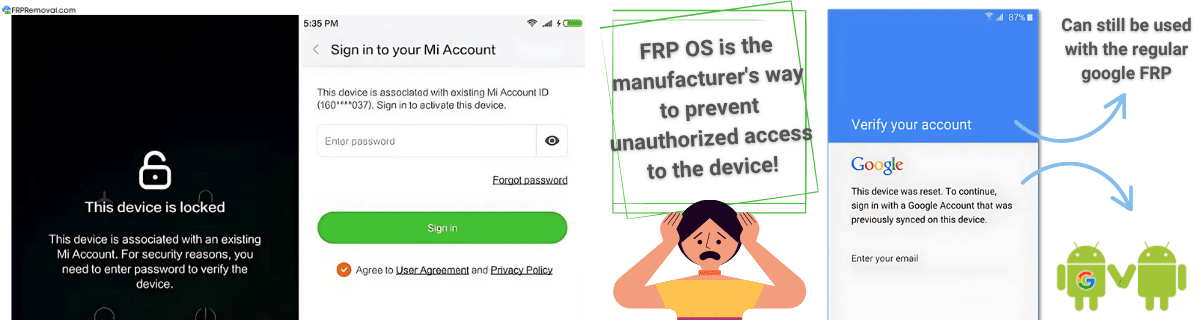
Quick tip: If you're unsure which manufacturer skin your phone uses, look at the lock screen carefully. Samsung shows a "Samsung Account" prompt, Xiaomi shows "Mi Account," and Huawei asks for a "Huawei ID." The wording tells you exactly which OS-level lock is active.
What Exactly Is FRP OS and Why Does It Add a Second Lock?
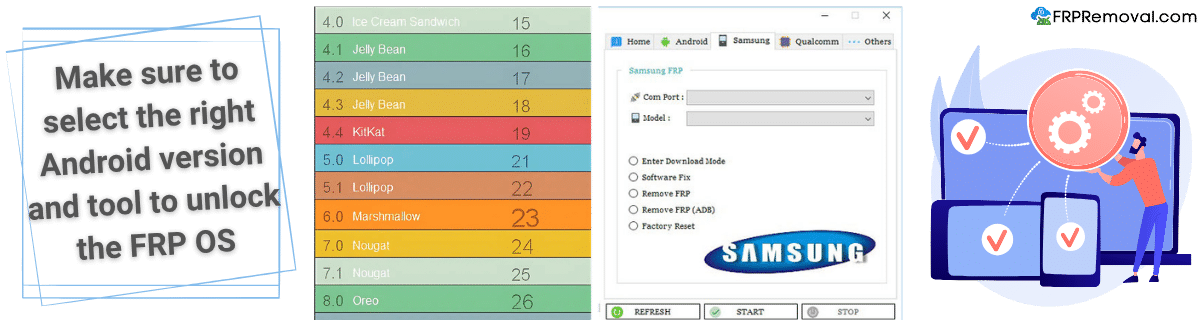
FRP, at its core, is the screen lock that activates after a hard reset. Google introduced this feature with Android 5.1 Lollipop to prevent unauthorized use of stolen devices. But here's what a lot of people don't realize: many manufacturers have built their own version of FRP on top of Google's.
Instead of just asking for the Google email and password, brands like Samsung, Huawei, and Xiaomi also require their own proprietary account credentials. This creates a dual-layer lock — you need to clear both the Google FRP and the manufacturer FRP to regain full access to the phone.
Why do manufacturers add their own account lock?
There are a few practical reasons. First, it adds another layer of protection on top of Google's system, making it harder for unauthorized users to access the device. Second, it allows manufacturers to register users on their platform and offer exclusive services — cloud storage, device tracking, remote wipe, and account recovery options that other Android brands can't provide. Finally, it lets them customize the lock screen behavior, patch vulnerabilities that Google's generic FRP might miss, and create tighter integration between hardware and software security.
Good to know: Even if you disable the Google account before resetting, the manufacturer's own lock may still trigger independently. Some brands tie their account lock to a separate system service, so removing one doesn't automatically remove the other.
When Does FRP Get Triggered Based on the OS You're Running?
The trigger is always the same action — a factory reset. But the way the OS handles it determines whether you get one lock or two.
If you reset through Settings > General Management > Reset, most phones treat this as a "trusted" reset and won't activate FRP. The phone assumes you're the rightful owner because you had to unlock the screen to access Settings in the first place.
But if someone resets the device through recovery mode (holding hardware buttons during boot), the phone treats it as an untrusted reset. That's when both the Google FRP and the manufacturer's OS lock activate simultaneously.
Watch out: On some brands, disabling the Google account before resetting won't prevent the OS-specific lock from appearing. Samsung's Reactivation Lock and Xiaomi's Mi Account Lock operate independently from Google's FRP, so you need to remove both accounts from Settings before doing any kind of reset.
Which Brands Have Their Own FRP Lock Besides Google?
Not all manufacturers handle FRP the same way. Some rely entirely on Google's built-in protection, while others layer their own account system on top. Here's a breakdown of the most common ones and what each lock is called.
| Brand | Lock Name | Custom OS Skin | How It Differs |
|---|---|---|---|
| Samsung | Reactivation Lock | One UI | Requires Samsung Account on top of Google. Can activate even if Google FRP is cleared. |
| Huawei | Huawei Account Lock | EMUI / HarmonyOS | Uses Huawei ID. Devices without Google Services still have this lock via EMUI. |
| Xiaomi | Mi Account Lock | MIUI / HyperOS | One of the hardest to bypass. Tied to bootloader unlock and cloud services. |
| Oppo / OnePlus | Account Lock | ColorOS / OxygenOS | Shared account system between both brands. OnePlus devices may show ColorOS lock on newer models. |
| Vivo | Vivo Account Lock | Funtouch OS / OriginOS | Activates through Vivo's own cloud service independently from Google. |
| Sony | Xperia Account Lock | Xperia UI | Lighter implementation. Closer to stock Android, but still requires Sony credentials. |
| Motorola | Motorola Account Lock | My UX | Near-stock Android experience. Google FRP is the main lock; Motorola's is less aggressive. |
| LG | LG Account Lock | LG UX | Still present on older devices in circulation. LG exited the phone market but existing phones retain the lock. |
The takeaway here is pretty clear: if your phone runs a heavily customized Android skin, there's a good chance it has its own account protection on top of Google's FRP. The more customized the OS, the more likely you are to face a second verification step.
How Does the FRP Lock Change Across Different Android Versions?
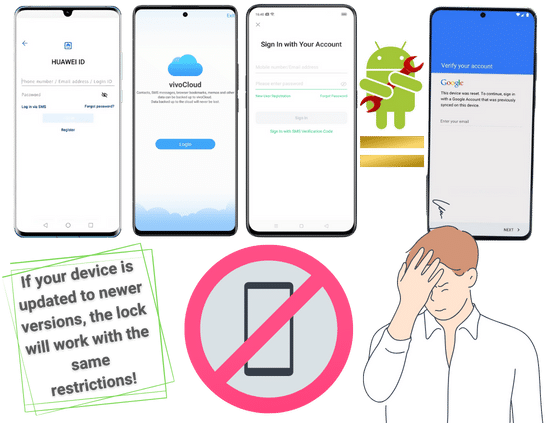
The core mechanism is the same across all versions, but the difficulty of bypassing it has increased significantly over the years. The Android version your phone runs directly affects which exploits are available and how tight the security is.
| Android Version | FRP Security Level | What Changed |
|---|---|---|
| 5.1 (Lollipop) | Basic | First version with FRP. Many exploits worked through accessibility settings and the emergency dialer. |
| 6.0 – 7.1 (Marshmallow – Nougat) | Moderate | Google patched some exploits, but TalkBack and browser-based tricks still worked on many devices. |
| 8.0 – 9 (Oreo – Pie) | Stronger | Sideloading APKs on the FRP screen became much harder. ADB access was restricted without prior setup. |
| 10 – 12 (Android 10 – 12) | Advanced | Significantly improved encryption. Most free methods stopped working. Manufacturer locks also tightened. |
| 13 – 14 | Very Strong | Virtually no reliable free bypass methods. Both Google and manufacturer locks use hardware-backed security keys. |
| 15 – 16 | Strongest | Latest security patches close remaining exploits. Only professional tools with server-side authentication can handle these versions reliably. |
On top of the Android version, manufacturer security updates add another variable. A Samsung phone running Android 14 with One UI 6.1 will behave differently from a Xiaomi phone on the same Android version but with MIUI 15. The custom OS skin determines how strictly the manufacturer lock is enforced, and newer skin versions tend to be more restrictive.
Quick tip: If your phone is running Android 12 or higher, don't waste time on YouTube bypass tricks or free APK downloads — those methods were designed for much older versions. Go straight to a professional tool that handles both the Google and OS-level lock.
What Are the Most Common Issues When Unlocking FRP by OS?
Dealing with an OS-level FRP presents challenges that go beyond the typical Google account lock. Here are the problems that come up most often, and why they happen.
- Bypassing Google but getting stuck on the brand lock: A lot of tools only handle the Google FRP portion. You clear the Google account, feel relieved, and then a second screen appears asking for a Samsung or Xiaomi account. Without a tool that handles both, you're back to square one.
- Using a method that doesn't match your Android version: A bypass trick that worked on Android 8 probably won't work on Android 14. The OS version determines which vulnerabilities are open, and newer versions close them aggressively.
- Ignoring security updates between bypass attempts: Some people try a method, fail, and then let the phone update while they're searching for another approach. Each update can patch the exact vulnerability you were planning to use next.
- Flashing firmware without understanding the consequences: Re-flashing can sometimes remove the Google lock but reactivate the manufacturer lock, or trigger additional security measures like a bootloader re-lock on Xiaomi devices.
- Confusing the manufacturer lock with the Google lock: They look similar on some devices, which leads people to enter Google credentials on a screen that's actually asking for a Samsung or Huawei account (or vice versa).
The good news is that all of these issues are avoidable when you use a service that's specifically designed to handle OS-level locks alongside the Google FRP. It's not about finding the fanciest workaround — it's about using a tool that actually understands what your phone is asking for.
If you've been going back and forth between the Google lock and a manufacturer account screen, FRPRemoval handles both. It works with all major brands and Android versions, including the OS-specific locks from Samsung, Xiaomi, Huawei, and more.
Remove Both FRP Locks NowWhat Does a Dual-Lock Situation Actually Look Like?

A colleague of ours recently picked up a used Samsung Galaxy S23 online. The listing said it was fully unlocked and ready to go. She powered it on, connected to Wi-Fi, and immediately hit the Google account verification screen. She used Google's account recovery to get past it — the seller had provided the email address but not the password, so recovery worked.
But right after clearing Google's FRP, a second screen popped up: "Sign in with your Samsung Account." The seller hadn't mentioned this at all, and she didn't have those credentials. She spent three days trying different methods she found online, including a TalkBack exploit (patched), an ADB command method (required USB debugging to be enabled first), and a bypass APK that wouldn't even download on the FRP screen.
Eventually she tried FRPRemoval, which handled both the leftover Google association and the Samsung Reactivation Lock in a single process. The whole thing took about 10 minutes once she stopped trying to patchwork a solution together.
Good to know: A dual-lock situation isn't unusual with second-hand phones. The seller might not even realize the manufacturer account is still linked, because it doesn't show up until after the Google lock is cleared.
How to Remove Both Google and OS FRP Locks with FRPRemoval
If Google's recovery and your manufacturer's account page didn't get you through, here's how FRPRemoval takes care of both locks. The process is the same regardless of which brand or Android version you're dealing with.
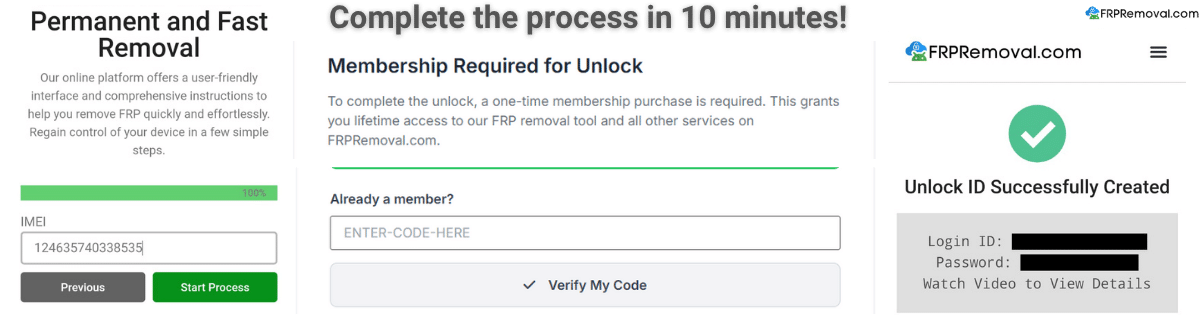
- Open FRPRemoval and select your brand: Head to FRPRemoval.com from any browser. Choose your device's manufacturer from the list — this tells the system whether to handle only the Google lock or both the Google and OS-level lock.
- Enter your device details: Provide your IMEI number, name, and email address. The system uses the IMEI to identify your specific device model, Android version, and which manufacturer lock applies.
- Complete the registration and verification: Create your account to activate the order. A quick verification step confirms you're a real person and prevents misuse of the platform.
- Receive your temporary credentials: Once processed, you'll get a Dummy ID — a set of temporary login details that are matched to your specific IMEI. This ID is designed to clear both the Google FRP screen and any manufacturer-level account prompt.
- Enter the credentials on your locked phone: On the verification screen, type in the dummy ID details just like you would a regular account. The phone will recognize them, clear the lock, and let you proceed with setup.
- Set up your phone with your own accounts: Once both locks are gone, complete the initial setup and add your own Google account and manufacturer account (if you want the brand's services). The previous accounts are fully removed.
Quick tip: After unlocking, we recommend going to Settings > Accounts and confirming that no old accounts remain linked. Then set up your own accounts fresh to avoid FRP triggering again in the future.
What Should You Do After Both FRP Locks Are Removed?
Once your phone is unlocked, take a few minutes to set things up properly. This prevents the same dual-lock situation from happening again and keeps your device secure going forward.
- Add your own Google account right away: Go to Settings > Accounts > Add Account > Google and sign in with your personal email. This makes the phone "yours" in Google's system.
- Set up the manufacturer account if offered: When Samsung, Xiaomi, or Huawei prompts you to create or sign into their account during setup, do it with your own credentials. This way you'll have access to device tracking, cloud backups, and remote wipe.
- Write down your recovery information: Save your Google recovery email, phone number, and manufacturer account credentials somewhere safe. A password manager works great for this.
- Remember the trusted reset rule: If you ever need to reset again, do it through Settings — not through recovery mode. A trusted reset won't trigger FRP.
- Keep your phone updated: Security updates are important for protecting your data. Now that you have full access, let the phone install updates normally.
Mistakes to Avoid When Dealing with OS-Level FRP Locks
When you're facing two locks instead of one, the temptation to try anything is strong. But some shortcuts will cost you more time than they save. Here's what to steer clear of.
- Treating both locks like they're the same: The Google lock and the manufacturer lock are two separate systems. A method that clears one won't necessarily clear the other, so you need a solution that addresses both.
- Flashing stock firmware to "start fresh": Re-flashing can sometimes reset the Google FRP but reactivate the manufacturer lock, or vice versa. On Xiaomi devices, it can also re-lock the bootloader, adding a third layer of complexity.
- Entering the wrong type of credentials on the wrong screen: If the phone is asking for a Samsung Account and you keep entering your Google email, it won't work. Read the screen carefully to identify which lock you're looking at.
- Downloading "universal" bypass tools from unverified sites: There is no universal tool that magically clears all locks for free. Most of these downloads contain malware or simply don't work on modern Android versions.
- Resetting the phone again hoping the lock will disappear: Doing another factory reset through recovery mode won't remove either lock. Both the Google account and the manufacturer account remain linked to the device until they're properly cleared.
Watch out: If you've been trying multiple methods and the phone starts showing "too many attempts" or "wait before trying again" messages, stop and wait. Repeatedly entering wrong credentials can trigger additional lockout timers that make the process take even longer.
Done trying one method after another? FRPRemoval is designed specifically for situations where the Google lock and the manufacturer lock are both active. One process, both locks removed, no technical expertise needed.
Unlock Your Device HereFrequently Asked Questions About FRP by OS
What's the difference between Google FRP and the manufacturer's account lock?
Google FRP asks for the Google email and password that were linked to the phone before the reset. The manufacturer lock (Samsung Reactivation Lock, Mi Account Lock, Huawei Account Lock, etc.) asks for credentials from the brand's own account system. They're two separate verification layers that can both activate after a factory reset.
Can I remove the manufacturer lock without removing the Google lock first?
On most devices, the Google FRP screen appears first. You typically need to clear that one before the manufacturer lock shows up. However, some brands like Xiaomi can show the Mi Account lock during the initial setup even before the Google verification, depending on the device configuration.
Does FRPRemoval handle both locks in a single process?
Yes. When you submit your IMEI and select your brand on FRPRemoval, the system identifies whether your device has a manufacturer-specific lock in addition to the Google FRP. The dummy credentials provided are designed to clear both verification layers during setup.
Which brands have the hardest manufacturer locks to bypass?
Samsung and Xiaomi are generally considered the most difficult. Samsung's Reactivation Lock is tied to the Samsung Account and can persist even after the Google lock is cleared. Xiaomi's Mi Account Lock is tied to the bootloader and cloud services, making it particularly stubborn on newer MIUI and HyperOS versions.
Will a future software update reactivate the locks after I've removed them?
Regular security patches won't reactivate FRP. However, major Android version upgrades or firmware re-flashes that wipe the system partition can trigger it again. As long as your own Google account and manufacturer account are properly set up after unlocking, you'll be able to get past any future verification prompts normally.
Do phones with stock Android (like Google Pixel or Motorola) have a manufacturer lock too?
Google Pixel devices only have Google's FRP — there's no additional manufacturer lock. Motorola's My UX is very close to stock Android, so while a Motorola Account Lock exists, it's far less aggressive than Samsung's or Xiaomi's. The closer a phone is to stock Android, the less likely it is to have a strong second lock.
You're Not Stuck — Both Locks Can Be Removed
Dealing with a dual FRP lock can feel overwhelming, especially when most guides online only talk about the Google account and don't mention the manufacturer layer at all. But now that you understand how the two systems work together, you're in a much better position to solve it.
Start with the official recovery options: Google's account recovery for the Google lock, and your manufacturer's support page for the brand-specific lock. If those paths don't work, FRPRemoval is designed to handle exactly this situation — both locks, any brand, any Android version, all from your browser.
The important thing is to use the right tool for the right lock. Don't settle for half-solutions that only clear one layer and leave you stuck at another screen. You deserve full access to your phone, and with the right approach, you'll have it in minutes.