
How to Remove the FRP Lock on Android 12 — Complete Guide
8–10 minutes
Quick answer: Your Android 12 phone is locked by Factory Reset Protection (FRP) because it was reset through recovery mode without removing the Google account first. Try Google Account Recovery first. If that doesn't work, contact your manufacturer with proof of purchase. If neither option works for you, online services can help remove the FRP lock in a matter of minutes without a PC.

Is This Guide for You?
You might be reading this because:
- You bought a second-hand Android 12 phone and it's asking for the previous owner's Google credentials.
- You forgot your Google password and can't get past the setup screen after a factory reset.
- Someone gave you their old phone but forgot to remove their account before resetting it.
- You factory reset your own device through recovery mode (Power + Volume keys) instead of Settings, and now it's locked.
If any of that sounds like you, you're in the right place. This happens to a lot of people, and it's not your fault.
Before You Start — What You'll Need
Gather these before trying any method:
- Internet connection (for account recovery or online tools)
- IMEI number (dial *#06# on a working phone, or check the device box)
- 5–15 minutes depending on the method
- Proof of purchase (if you plan to contact the manufacturer)
What is Factory Reset Protection (FRP) and Why Does It Lock Android 12 Devices?
Factory Reset Protection (FRP) is a built-in security feature on all Android devices running Android 5.1 and higher, including Android 12. Google introduced it in 2015 to deter theft.
Here's how it works: when you add a Google account to your phone, FRP turns on automatically. If someone resets the device through an "untrusted" method (like recovery mode or hardware buttons) without removing that account first, the phone asks for the previous Google email and password on the next boot. If you can't provide them, you're locked out.
The "trusted" way to reset is through Settings. When you go to Settings > General Management > Reset > Factory Data Reset, the device removes your accounts before wiping. FRP never triggers. But if you used recovery mode (Power + Volume Down, then "Wipe data"), the phone wipes without removing the account first. That's when FRP kicks in.
Good to know: FRP turns on automatically the moment you add a Google account. There's no separate toggle. And if you recently changed your Google password, you need to wait 24–72 hours before the new password works on the FRP screen. Trying too soon can lock down your entire Google account.
Best Known Methods to Remove Google FRP Locks
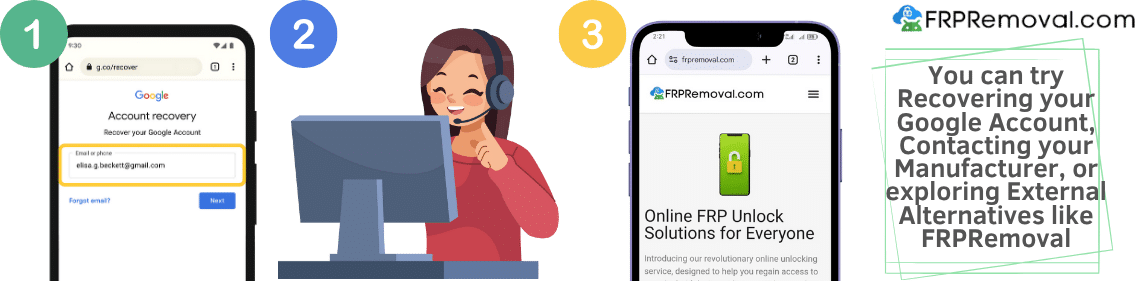
Method 1: Google Account Recovery (Try This First)
The official first step is to reset your password and recover your Google account. Go to the Google Account Recovery page and follow the prompts. If you have access to your recovery email or phone number, this often works.
One thing to keep in mind: if you just changed your password, wait at least 24–72 hours before trying it on the FRP screen. Google needs time to sync, and using a freshly changed password too soon can cause problems.
Method 2: Manufacturer Support
If account recovery doesn't work, contact your phone manufacturer with proof of purchase. They can remove the FRP lock for legitimate owners. For example, Samsung support handles Galaxy devices, Xiaomi support handles MI and Redmi devices, and so on. The process usually takes a week or more while they verify your ownership.
Method 3: Rooting the Android Device (Not Recommended)
Rooting deactivates the device's security layers to bypass the FRP lock. But here's the thing: it's risky. Rooting can damage your phone's software, void your warranty, and leave the device vulnerable to malware. It often involves unlocking the bootloader and flashing custom ROMs, which can brick your phone if done wrong. In general, it's not worth it.
Method 4: FRP Bypass Tools (When the Official Route Doesn't Work)
If you've tried account recovery and manufacturer support without success (or you don't have proof of purchase because you bought a second-hand phone), there are external options that work independently from Google and your manufacturer.
The key is to use a reputable, secure service. Avoid random downloads from unknown sites. Many free tools are outdated, unreliable, or contain malware.
That's where FRPRemoval comes in. If the conventional methods didn't work for you, FRPRemoval is an online tool designed to help you remove the FRP lock from your Android 12 device. It doesn't require any downloads, it doesn't tamper with your software, and it works with Samsung, Xiaomi, Motorola, Google Pixel, and other Android brands. The process takes just a few minutes, and you can have the peace of mind that your device will be usable again without any issues.
What is FRPRemoval and How Does It Remove the Google FRP Lock?
FRPRemoval is an online service that specializes in removing FRP locks on Android devices, including phones running Android 12. It works regardless of your device brand and model.
Rather than using risky hacks or apps, FRPRemoval uses server-side solutions to generate a new credential that replaces the locked Google account on your phone. This method ensures your device is unlocked safely and permanently, without compromising its functionality or warranty.
Unlike some other tools, FRPRemoval doesn't ask you to download a program to your PC or give access to your phone. Everything is done online, which makes the process smoother and safer.
How the FRPRemoval Process Works — Step by Step
- Visit FRPRemoval: Go to the FRPRemoval website and select your device brand and model.
- Enter your device details: Provide the required information (like your IMEI number) so the system knows exactly what it's working with.
- Let FRPRemoval handle the rest: The tool takes care of the FRP removal process, and you'll be notified once it's complete.
- Set up your phone: Once the process is done, you can set up your device with a new Google account and use it normally.
Benefits of Using FRPRemoval for Android 12
- Compatible with Android 12 devices from Samsung, Xiaomi, Motorola, Google Pixel, and more.
- No PC or software download required. Everything is done online.
- Process takes just a few minutes.
- Doesn't void your warranty or damage your device.
Common Mistakes to Avoid
- Trying the new password too soon: Wait at least 72 hours after resetting your Google password before using it on the FRP screen.
- Downloading random bypass tools: Most free tools are outdated, unreliable, or contain malware. Stick to reputable services.
- Rooting your phone: Rooting can brick your device and void your warranty. There are simpler options.
- Entering your Google password on unknown websites: Only enter credentials on Google's official recovery page. Never type your password into third-party sites.
After Your Device Is Unlocked — What Happens Next?
Once the FRP lock is removed, you'll go through the normal Android setup. You can add a new Google account (or create one), restore your data if you have a backup, and use your phone as usual. Your device won't be locked again unless someone factory resets it through recovery mode without removing the account first.
To avoid triggering FRP in the future, always use Settings > Reset when you want to wipe your device, and remove your Google account before selling or giving away your phone.

Dealing with an FRP lock on Android 12 can be frustrating, but it doesn't have to be complicated. If you've tried the official methods and they didn't work for you, FRPRemoval is here to help. The process is simple, fast, and works with most Android devices. Don't let an FRP lock hold you back from using your phone.
Start Your Unlock HereFrequently Asked Questions About FRP on Android 12
Can I bypass FRP on Android 12 without the original Google account?
Yes, it's possible to remove the FRP lock without the original Google account credentials. The official recommendation is to recover your account through Google's recovery page, but this doesn't always work, especially if you bought a second-hand device. In that case, a tool like FRPRemoval can help you remove the lock without needing the original account information.
How long does it take to remove FRP on Android 12?
It depends on the method. The official route (contacting the manufacturer with proof of purchase) can take days or even weeks. If you use a service like FRPRemoval, the process is much faster, usually a matter of minutes, depending on your device model and Android version.
Does FRP removal work on all Android 12 phones?
FRP is a standard Android feature, so it affects all devices running Android 5.1 and above, including Android 12. Each manufacturer implements it slightly differently, but FRPRemoval is designed to work across different brands and models, including Samsung Galaxy, Google Pixel, Xiaomi, Motorola, and more.
Is it safe to remove FRP from my Android 12 phone?
If you're the legitimate owner of the device (or you purchased it second-hand from a trustworthy source), removing the FRP lock is safe. The process doesn't damage your device or affect its functionality. FRPRemoval handles the process without requiring you to flash firmware or use risky third-party software.