FRP Bypass Android — How to Unlock Google Verification on Any Android Phone
8 min read
Removing an FRP lock on Android isn't complicated when you know the right steps. All you need are your Google credentials to continue past the verification screen. The problem comes when you can't remember the email or password, and Google's recovery options don't get you through. That's where FRPRemoval comes in — a quick and efficient tool designed to help you unlock FRP on any Android device without a computer or technical knowledge.
Does This Sound Like Your Situation?
If you're reading this, chances are you're dealing with one of these scenarios right now. Don't worry — it happens more often than you'd think, and it doesn't mean you've done anything wrong.
- You purchased a used Android phone and it's requesting the previous owner's Google account at setup.
- You did a factory reset on your Android but forgot to remove the Google account beforehand.
- You can't remember your Google email or password and the recovery process isn't working.
- A family member or friend gave you their old Android phone but didn't sign out of Google first.
- Your phone triggered the verification screen after a failed update or an accidental recovery mode reset.
Gather These Essentials Before You Begin
Having a few things ready before you start will save you from getting stuck halfway. Here's what you should have on hand so the process goes smoothly from start to finish.
Make sure you have
- Your device's IMEI number — dial *#06# from the emergency dialer, or check the original box or SIM tray. This is required for most unlock methods.
- The model number and Android version — you can find this in recovery mode or on the device packaging. It helps determine the best removal approach.
- A reliable internet connection — the FRP screen itself requires Wi-Fi or mobile data to verify your account, and any online tool will need connectivity too.
- At least 50% battery charge — you don't want the phone dying during the unlock process, as that could cause errors.
- About 10–15 minutes of your time — the entire process is straightforward once you have everything ready.
Quick tip: If you can't access the dialer on the FRP screen, look for the IMEI on a sticker under the battery (for removable backs), on the SIM card tray, or printed on the original retail box.
How Can You Confirm Whether FRP Is Active on Your Android?
Before jumping into any removal method, it's worth checking whether FRP is actually enabled on the device. This quick verification can save you time and help you choose the right approach.
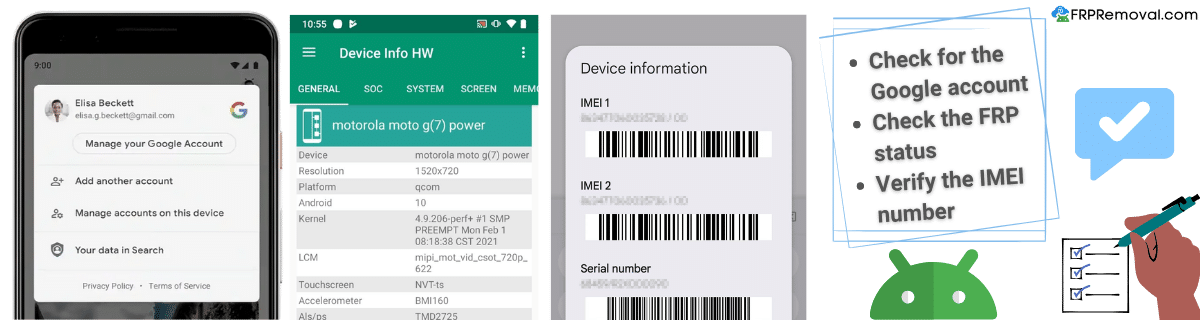
- Check your accounts in Settings: Navigate to Settings > Accounts and scroll down. If you see a Google account listed there, FRP protection is active on the device.
- Use a device info app: If you're unsure about the FRP status, apps like Device Info HW can confirm whether FRP protection is currently enabled.
- Verify the IMEI status: For second-hand phones, check the device's IMEI number with the manufacturer's support to confirm whether a Google account is still associated with it.
Good to know: If you're planning a factory reset and still have access to the phone, go to Settings > Accounts and remove your Google account first. This prevents FRP from activating after the reset and saves you the trouble entirely.
Which Android Devices Can Trigger the Google Lock?
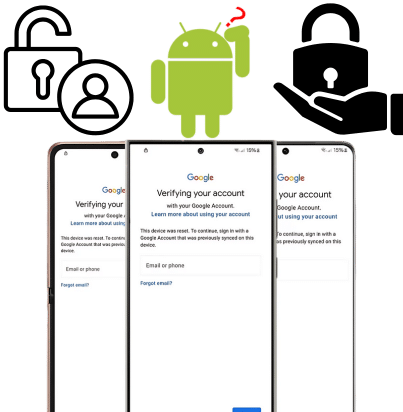
Any Android device running Android 5.1 Lollipop or later will have the Google account verification screen active by default. That covers virtually every phone and tablet on the market today.
The way FRP works can vary slightly depending on the manufacturer, device model, and Android version, but it always requests the same thing — the Google credentials that were linked to the device before the reset. Because of this, you can encounter FRP on any Android phone or tablet, from budget models to flagships.
The good news is that since all Android OS devices can have this lock, all of them can also be unlocked. You have both official methods and third-party bypass tools at your disposal, so it's almost guaranteed that you'll regain access. The only variable is the time and efficiency of the approach you choose — some methods take hours, while tools like FRPRemoval can handle it in just a few minutes.
Why Do Old Bypass Tricks Fail on Modern Android Versions?
Over the years, many tricks were used to get around the FRP lock. But Android's security has evolved significantly, and Google along with device manufacturers have been patching these vulnerabilities with every update. Here's what no longer works and why.
| Method | Why It No Longer Works |
|---|---|
| TalkBack bypass | This exploited accessibility features to navigate past the lock screen. Google completely patched this in newer Android versions. |
| ADB commands | Android Debug Bridge required USB debugging to be enabled, which isn't accessible without proper authentication on FRP-locked devices. |
| Emergency dialer exploit | Used the emergency calling screen to access other functions. Security updates closed this loophole completely. |
| Safe mode bypass | Attempted to disable security apps through safe mode. Modern Android prevents this workaround entirely. |
| Rooting the device | Modern Android security architecture blocks root access from bypassing FRP protection. |
| FRP bypass APKs | Manufacturers now prevent sideloading apps on the FRP screen, so the APK can't be downloaded or opened to remove the lock. |
FRP Unlock APKs were once a really popular workaround for removing the Google lock. But they don't work like they used to. Google and Android manufacturers have been patching the vulnerabilities that these APKs relied on. The main issue now is that the phone no longer allows you to download or install anything while the FRP screen is active, making those tools completely ineffective.
Watch out: Many websites still advertise "new FRP codes" or "free bypass APKs" that claim to work on any device. These are outdated, unreliable, and often contain malware. If it sounds too good to be true, it probably is. Stick to verified tools with a track record.
If you've already tried Google account recovery and it didn't work, FRPRemoval can help you get past the lock on your Android. The process works entirely online, takes just a few minutes, and doesn't require a computer or any technical expertise.
Unlock Your Android NowHow to Remove Google Verification on Android with FRPRemoval
If Google's account recovery didn't get you through, here's how FRPRemoval handles the process. It works with all Android brands and takes about 5–10 minutes from start to finish.
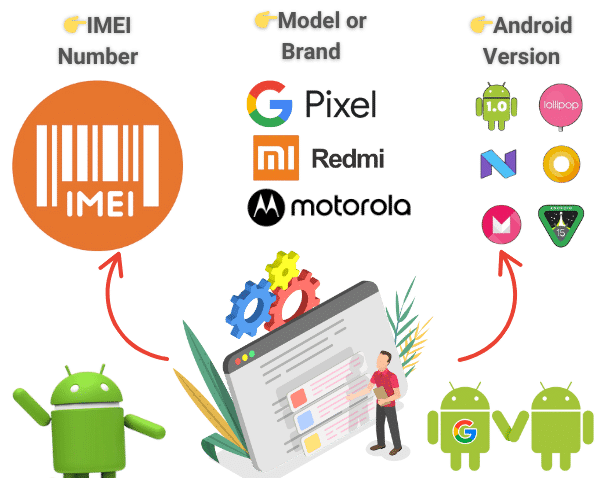
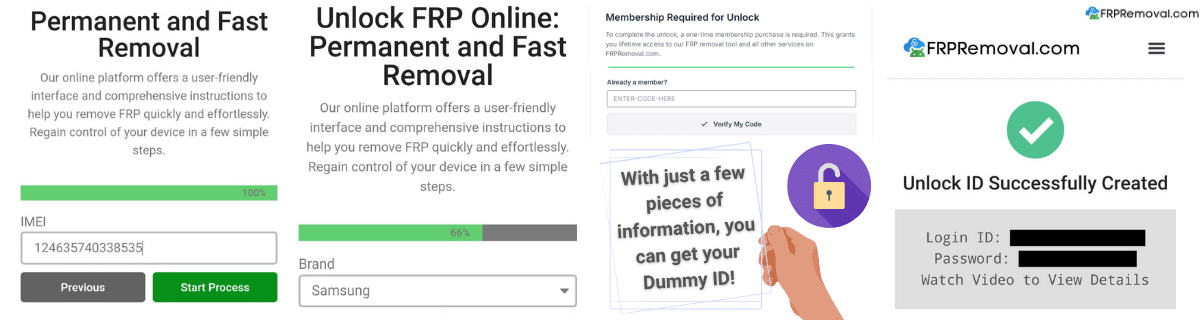
- Visit FRPRemoval: Open FRPRemoval.com from any browser on another device and select your phone's manufacturer from the list.
- Fill in your device information: Enter your name, email, the phone's manufacturer, and your IMEI number on the form. This creates a unique order tied to your specific device.
- Complete the registration: Finish the quick registration and verification process on the site to confirm your order.
- Receive your temporary credentials: Once processed, you'll get a dummy Google account and password — temporary login details designed specifically for bypassing the FRP screen.
- Enter the credentials on your phone: On the Google verification screen, type in the dummy ID details just like you would with a regular Google account.
- Finish the setup: After the FRP lock clears, complete the initial phone setup and sign in with your own Google account.
Good to know: The dummy credentials are temporary and single-use. They exist only to get past the FRP screen and don't stay linked to your device. The system automatically erases them after a couple of hours, so nobody else can use them.
What Should You Do After Regaining Access?
Once you get past the Google verification screen, your Android will work just like it did before the reset. You'll have full access to the home screen, apps, settings, and all Google services. Here's what we recommend doing right away.
- Sign in with your own Google account: Go to Settings > Accounts and add your personal Gmail. This becomes the new account linked to the device for FRP protection.
- Set up two-factor authentication: Enable 2-Step Verification on your Google account so you always have a backup way to recover access if you forget your password.
- Save your credentials somewhere safe: It sounds simple, but writing down your Google email and password in a secure place prevents this whole situation from repeating.
- Check for software updates: Head to Settings > System > Software Update and install any pending updates. Keeping your Android up to date improves both performance and security.
- Install your favorite apps: Open the Google Play Store and set up the device with the apps and services you use daily.
Rest assured — after the FRP lock is gone, your phone is fully functional. There are no lingering restrictions, and you can use it exactly as you would a brand-new device.
Pitfalls to Watch Out For During FRP Removal
When you're locked out, it's easy to get impatient and try anything you find online. But some of those shortcuts can make the situation worse. Here are the most common mistakes we see people make.
- Downloading random bypass APKs: Most FRP bypass APKs floating around online are outdated, incompatible with current Android versions, or loaded with malware. Since the FRP screen now blocks sideloading, they won't even install.
- Trying "secret codes" from YouTube videos: There is no Google FRP code that works anymore. Any code you attempt on the dialer that isn't official will simply display an error. These tricks were patched a long time ago.
- Resetting the phone again through recovery mode: A second factory reset won't remove the Google account link. It just restarts the same verification screen because FRP is tied to the account, not the phone's data.
- Using a recently changed Google password: If you just reset your password, you need to wait 24 to 72 hours before it works on the FRP screen. Google enforces a sync period, and trying sooner will keep getting rejected.
- Interrupting the unlock process midway: If a tool is actively working on your device, don't restart the phone or disconnect anything. Interrupting the process can cause errors or leave the phone in a partially broken state.
- Flashing random firmware files: Installing firmware that doesn't match your exact model and Android version can permanently damage the device. Only use firmware from official sources if you go that route.
Watch out: Never enter personal information on websites that promise to "instantly" remove FRP for free. These sites are often designed to collect your data. Stick to verified services with transparent processes and real customer support.
Want to skip the risk entirely? FRPRemoval handles the whole process remotely — no firmware flashing, no cables, and no chance of damaging your device. It works safely with all Android brands and models.
Remove FRP SafelyFrequently Asked Questions About FRP on Android
Does FRP removal work on every Android brand?
Yes. FRP is a standard Google feature built into Android itself, not something specific to one manufacturer. Whether you have a Samsung, LG, Huawei, Motorola, Sony, or any other brand running Android 5.1 or later, the lock works the same way — and so does the removal process through FRPRemoval.
What if I don't know my phone's IMEI number?
Try dialing *#06# from the emergency call screen — most FRP-locked phones still allow this. If the dialer isn't accessible, check the sticker on the original retail box, look at the SIM card tray, or check under the battery on phones with removable backs. Your carrier may also have the IMEI on file if you contact them.
Is it safe to use a third-party FRP removal tool?
It depends on the tool. Services like FRPRemoval work entirely online without modifying your phone's software or firmware, so there's no risk of bricking or data corruption. The key is to avoid unknown APKs, free "miracle" tools, and any service that asks you to flash files onto your device without clear instructions.
How long does it take to unlock FRP with FRPRemoval?
The whole process typically takes between 5 and 10 minutes. You fill in the online form, complete the verification, and receive your temporary credentials. Entering them on the phone and finishing the setup adds just a couple more minutes.
Will removing FRP erase any data on my phone?
No. If you're using FRPRemoval, the process simply bypasses the Google verification screen. It doesn't perform another factory reset or touch any files on the device. However, if the phone was already reset before the FRP appeared, the previous data is already gone regardless of the unlock method.
Do I need a computer to remove the FRP lock?
Not with FRPRemoval. The entire process happens online, so you can complete it from another phone, a tablet, or any device with a browser and internet connection. There's no software to download, no USB cables needed, and no PC required at any step.
Your Android Doesn't Have to Stay Stuck
We understand how frustrating it feels to stare at that Google verification screen, especially when you've already tried everything you can think of. But now you know exactly what's going on, why the old tricks don't work anymore, and what your real options are. Most people solve this in under 15 minutes once they stop guessing and follow a clear path.
Start with Google's account recovery — it's always the simplest route if it works. If that's not an option for you, FRPRemoval can handle the rest without any risk to your device.
Ready to get your Android unlocked? No downloads, no cables, no complicated steps — just straightforward access to your phone again.
Unlock Your Android Here